
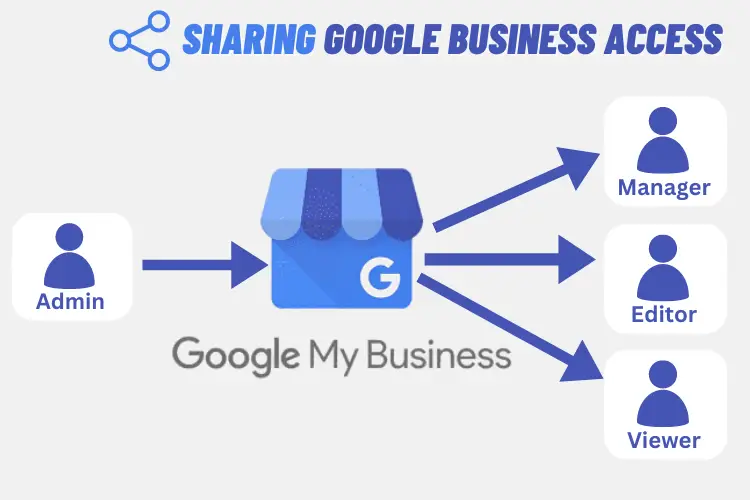
If you are thinking of managing your Google My Business profile with your business partner, friends, workers, or with your employees then this is the guide to Sharing Google Business Access as Owner, Manager, and Communications Manager. Sharing access to this profile can enhance your operations allowing for better collaboration and marketing approach.
Sharing Google Business Access Levels
Before diving into the detailed process it is good to understand the different access levels available.
Owner Level
The owner has full control over the business profile that can add or remove users and manage all settings etc.
Manager Level
At the manager level manager can just edit the Google My Business profile, view insights, etc but can’t remove the owner or manage users. The manager level is good for team members who need significant access without the ability to change ownership.
Communications Manager Level
This role allows members to respond to reviews, post updates, and view insights but can’t access to edit business information. That is ideal for your marketing or customer service teams.
Why Share Google Business Access?
There would be several reasons to share Google business access:
Collaboration Benefits
When you share Google My Business access with your team members they can contribute to managing your business profile, which streamlines operations. That is very useful for businesses that have multiple locations or services.
Marketing Strategies
It can enhance your marketing strategy because a shared profile means your team can directly respond to your customers, publish, manage posts, and also analyze performance metrics.
Time Management
It could be time-saving for you instead of handling every task by yourself. your team can divide the tasks based on their expertise.
How To Share Google My Business Access Step-by-Step Guide
Here is a simple 5 step-by-step guide to sharing Google business access, follow the steps:
Login:
The first step is to go to Google My Business profile and login with your mail.
Navigate to the profile dashboard:
After logging in to your Google My Business profile navigate to the dashboard in the profile.
User section:
In the dashboard > go> “users” on the left-hand side. To see your current users associated with your profile click on it.
Invite Users:
Click on the “Invite new users” button to add persons. Here, enter the user’s email address you want to add or invite.
Setting Permissions:
Before sending the invitation, select the role you want to assign (Owner, Manager, or Communications Manager) from the dropdown menu.
Managing User Permissions
After sharing GMB profile access, it is important to know and manage permissions functionally.
Understanding Different Roles
Ensure one thing that each user knows their responsibilities and their limitations based on their access level. That clarity helps you prevent unauthorized changes to your GMB Profile.
Modifying Permissions
During the working process if a user role needs to change, then you can easily change and edit their permissions to the profile from the “users” section.
Removing Access
To remove a user simply click on their name and select “Remove user”. This action will revoke their access immediately.
Best Practices for Sharing Google Business Access
Right Access Level:
Always choose the right access level for the users before assigning roles. This practice maintains the security and integrity of your profile.
Review User Access:
Regularly review who has access to your GMB profile. Edit and remove the user according to the needs if the user resigns or is fired by the company remove their access to ensure your business information remains secure.
Security:
Keep your profile secure by enabling security features like generating a secure password by yourself or through a password generator tool, turning on two-step verification, etc.
Common Issues When Sharing Google My Business Access
Some common issues may occur while sharing access:
Invitations Not Received
If you add someone’s email address and they claim they didn’t receive the invitation link ask them to check their spam or junk folder or their mail address. If not resend the invitation if necessary.
Users Unable to Accept Invitations
Make sure the email address is valid. Sometimes, using a different email account (like a work email) may help if the invitation isn’t appearing.
Access Issues After Sharing
If a new user is experiencing access issues, double-check their role and permissions to confirm they’ve been set up correctly.
Related article: How to Leave a Google Review
Conclusion:
Sharing GMB(Google My Business) profile access can transform how your business operates worldwide. It helps collaboration enhance marketing strategies and helps to save time. Always remember to manage user permissions to keep your profile secure. So, take the leap, share that access, and watch your business thrive!
FAQs About Sharing GMB Profile
How to add & remove owners & managers for your business profile?
To add or remove owners and managers from your business profile, follow these steps:
Login to your GMB profile > Select “users”
To add users > select “invite” button
To Remove users > Select “Remove user”
How many users can I share my Google Business Profile with?
It has a limit of up to 50 users to add to the GMB profile.
Can I share access with someone outside my organization?
Yes, you can.
What happens if I remove a user’s access?
The user will no longer be in your Google business profile.